About AeroNav 3D
Instructions
Watch the video below for a full walkthrough of how to use AeroNav 3D.
Drag & Drop: Simply drag the AeroNav 3D component onto your canvas.
Link Sections: For "Section" links, make sure the sectionId (e.g., #home) matches the id of the corresponding frame on your page. You can set a frame's id in the "Code Overrides" section of the properties panel.
Customize: Use the properties panel to adjust colors, fonts, positioning, and more to match your design.
Description
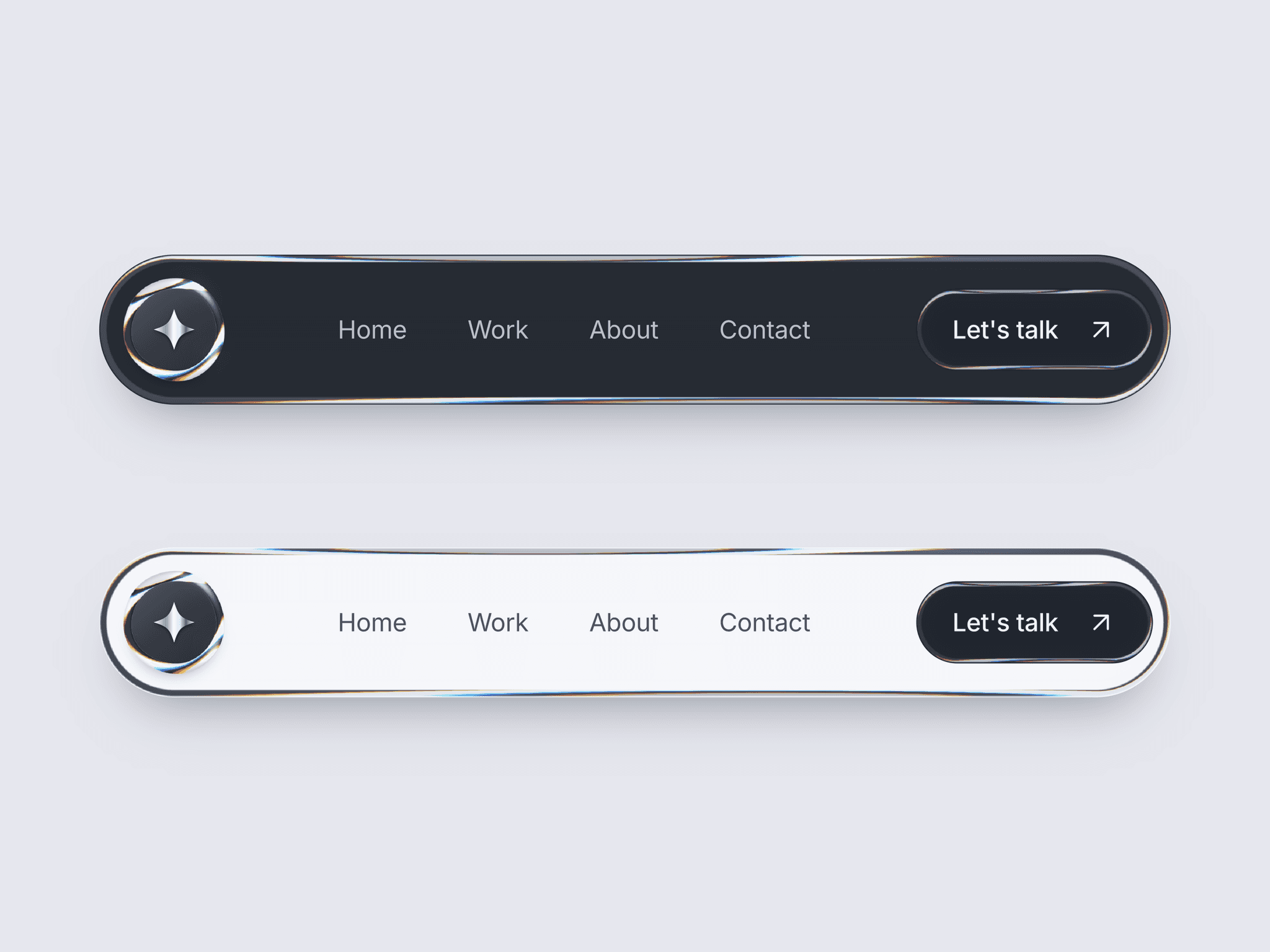
AeroNav 3D replicates the elegant, frosted-glass aesthetic seen in Apple's interfaces. When users hover over the component, it tilts in 3D space, creating a subtle and engaging parallax effect that follows the cursor. The component is fully responsive, ensuring a premium look and feel on any device, and is designed to be the perfect minimal navigation for modern websites.
Use Cases
Portfolio Sites - Add a premium, modern feel to showcase your work.
SaaS & Tech Startups - A sleek, professional navigation experience for your product.
Agency Websites - Demonstrate attention to detail and design polish to potential clients.
Landing Pages - Create an engaging and memorable first impression for visitors.
Modern Web Designs - The perfect final touch for any site aiming for a clean, interactive, and minimal aesthetic.
Customizations
Nav Items - Add, remove, and reorder links. Set custom labels and choose whether each link scrolls to a section or navigates to a new page.
Light & Dark Themes - Full control over two separate color palettes. Customize the background, text, and highlight colors for both modes.
Positioning - Place the navbar at the top, bottom, left, or right of the viewport with a single click.
Typography - Set a custom font family to match
your site's branding.
3D Tilt - Adjust the maximum tilt angle on hover to make the effect as subtle or dramatic as you like.
Settings Panel - The on-screen settings panel can be enabled or disabled
⚠️ Commercial use restrictions :
* - Sharing with third parties who haven't bought the component on Framer Marketplace, nor on LemonSqueezy's Framer Master's account is PROHIBITED* - Use of this component in templates, direct resell or shared link without payment is strictly PROHIBITED