About Cinematic Slideshow
Cinematic Slideshow
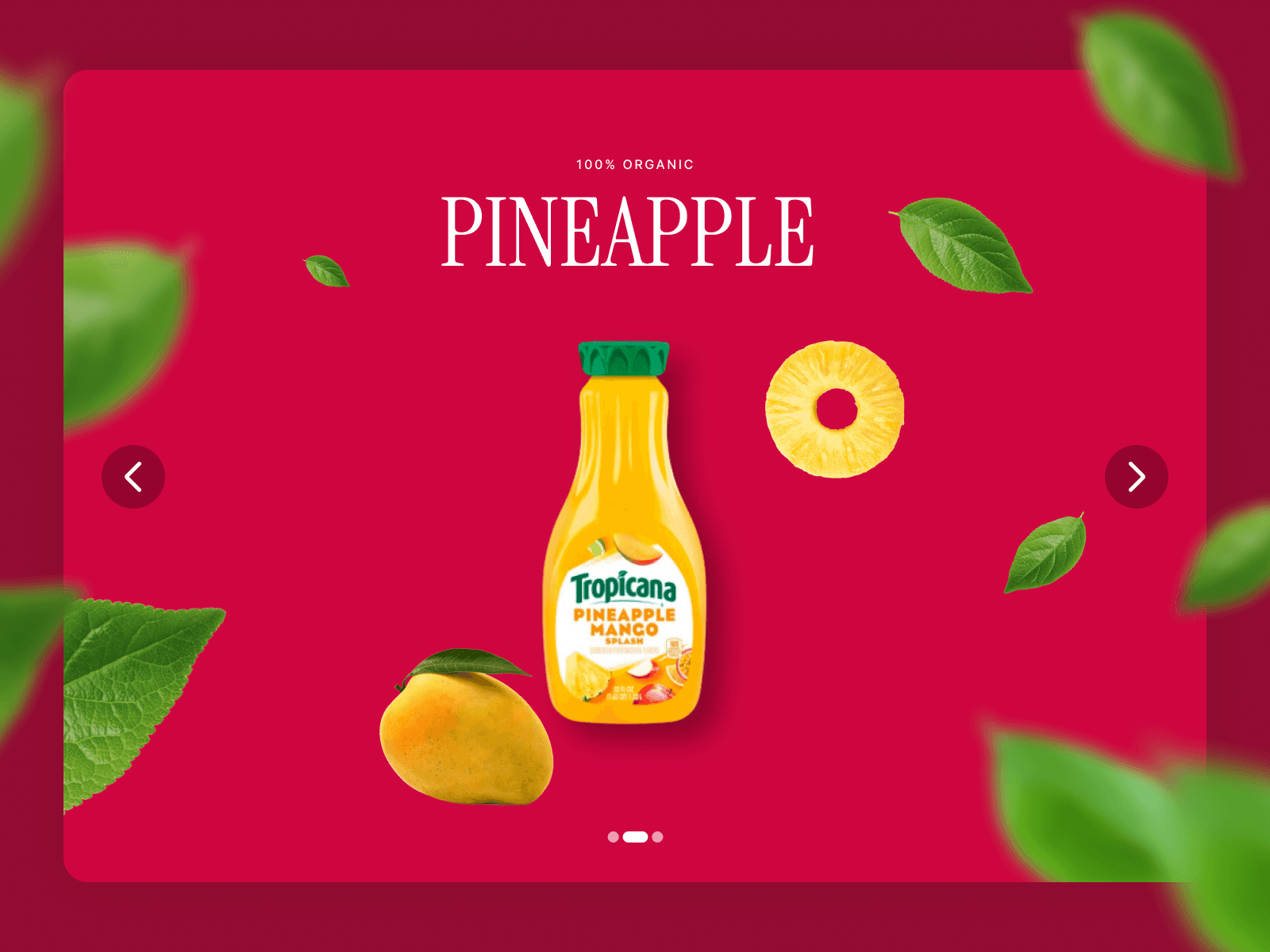
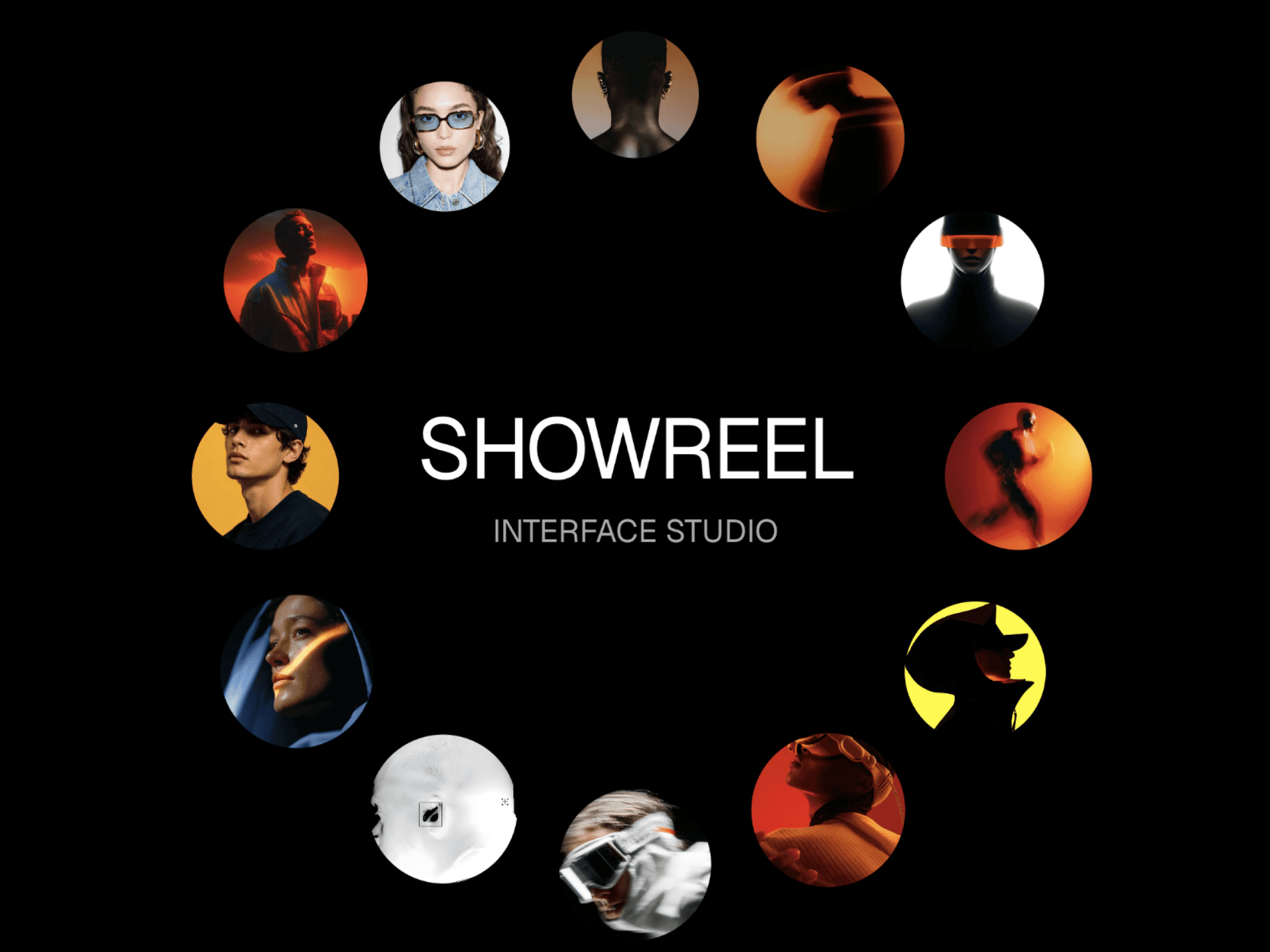
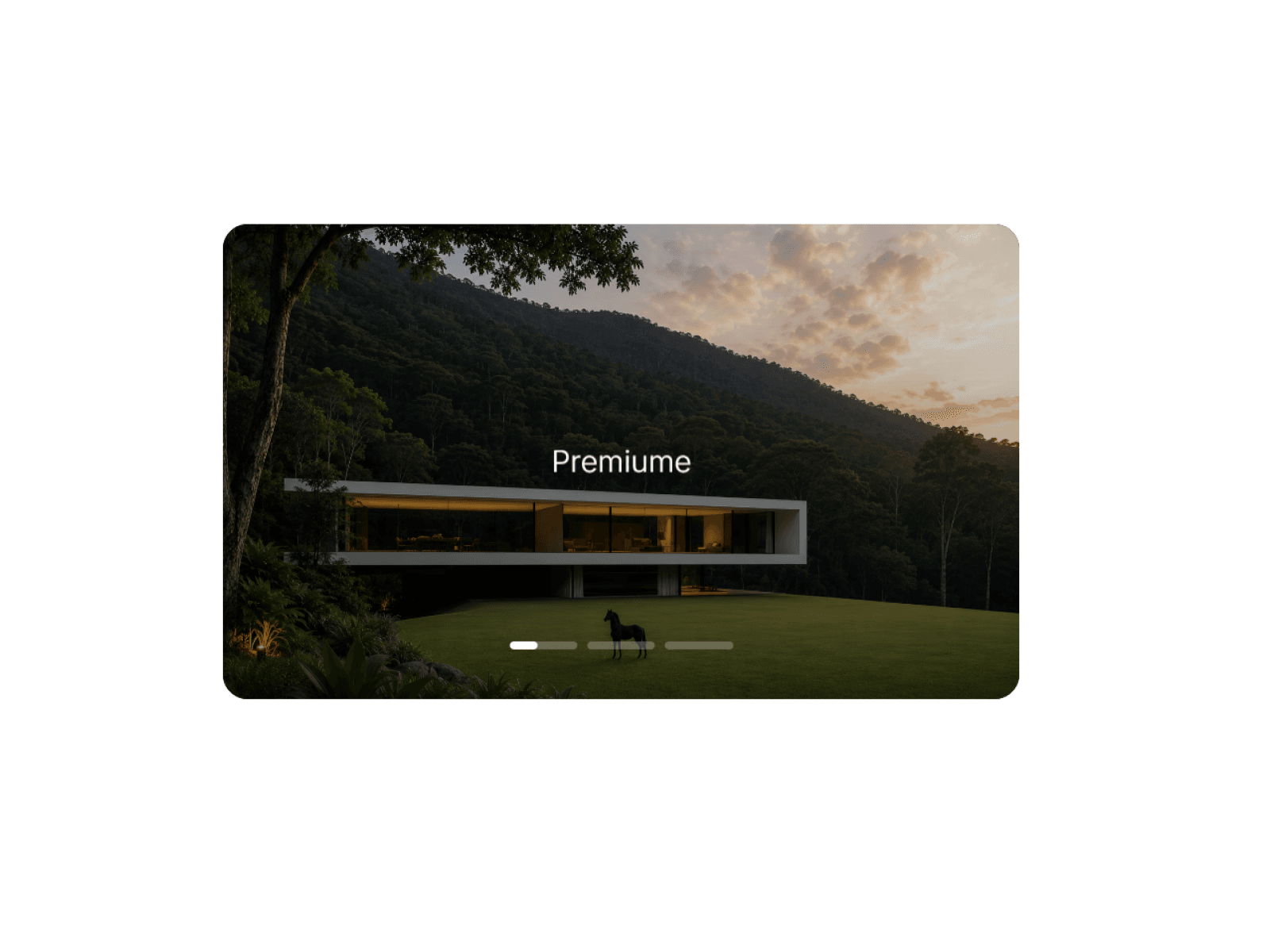
Cinematic Slideshow is a premium Framer component for immersive visual experiences with smooth autoplay, cinematic animations, progress navigation, customizable text effects, an adjustable progress bar, and typography controls.
Features
Smooth autoplay
Clickable progress navigation
Multiple image effects
Multiple text animations
Full typography controls
Customizable progress bar
Responsive layout
How to Use
1. Add the Component
Drag Cinematic Slideshow onto your Framer canvas.
2. Add Slides
Open Slides and add an Image and Title for each slide.
3. Customize Typography
Open Font to adjust font family, size, weight, spacing, and line height.
4. Image Effects
Choose Fade, Zoom, Slide Up, or Slide Left.
5. Text Effects
Choose Fade, Slide Up, Zoom, or Blur.
6. Duration
Control how long each slide stays visible.
7. Radius
Control corner roundness.
8. Progress Bar
Customize Show/Hide, width, height, gap, bottom offset, bar color, and track color.
Interaction
Autoplay: Slides transition automatically based on the selected duration.
Progress Navigation: Click a progress segment to switch slides instantly.
Smooth Timing Reset: Manual slide changes restart autoplay smoothly.
Tips
Use High-Quality Images: Better visuals create smoother cinematic results.
Keep Titles Short: Short titles create a cleaner look.
Match Animations to Your Brand: Zoom feels premium, Fade feels minimal, and Slide feels dynamic.
Use Consistent Image Ratios: Consistent dimensions create smoother transitions.
Keep the Progress Bar Subtle: A 3–4px bar works well for large hero sections.
Refund Policy
Due to the digital nature of this product, all purchases are final and non-refundable. Please review the features before purchasing. For technical issues, contact me for support.