About Synced Hotspots
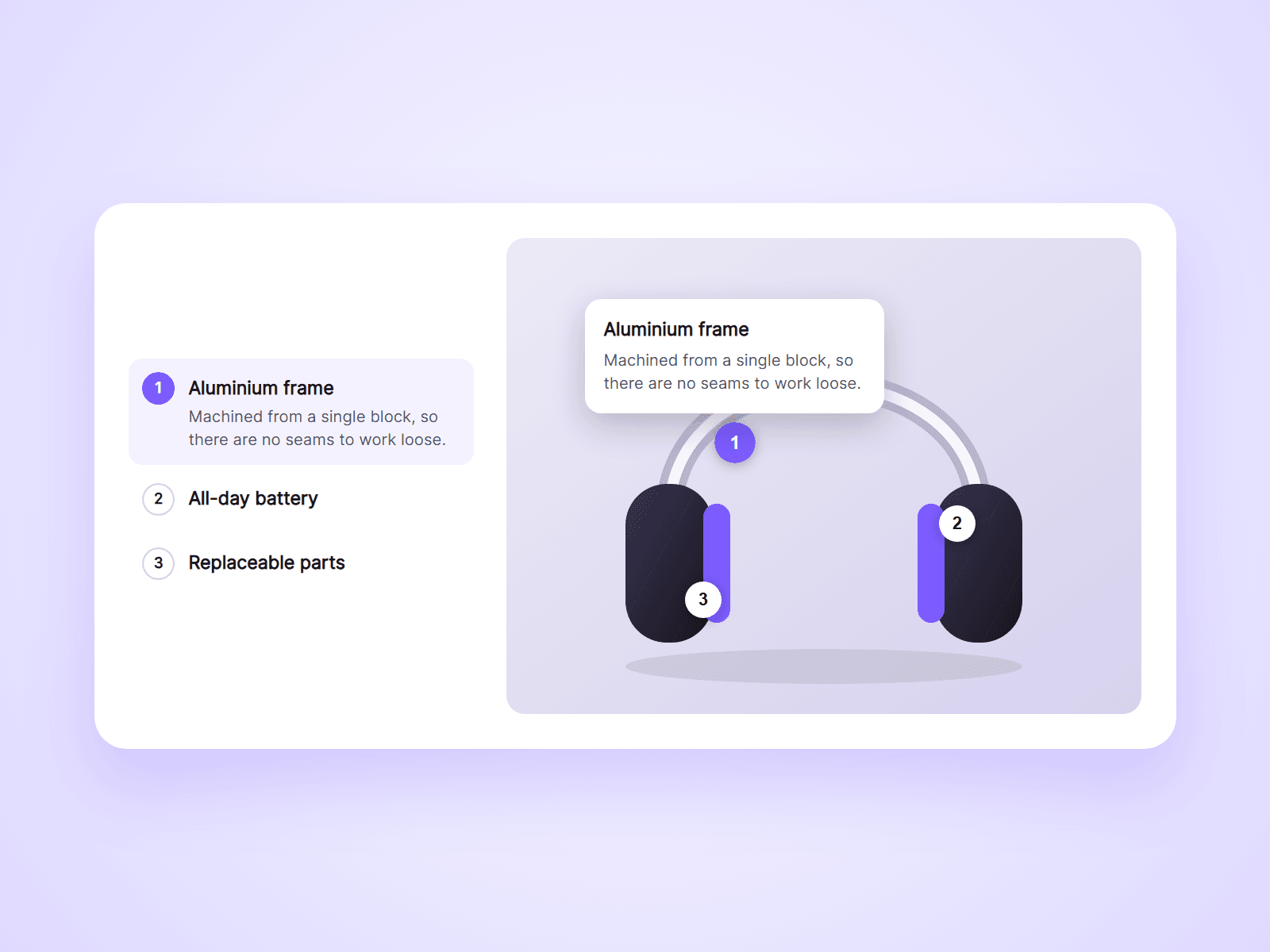
Image hotspots with a list that stays in sync. Visitors click a marker on your picture and a card opens with a title, a text and a link. Put the List next to the picture and it shows the same points: click a row and its marker opens, click a marker and its row lights up.
What you can customize
Everything is set from the property panel. No code needed.
- Image, ratio and corner radius
- Hotspots, up to 20: position, title, text and link
- Open on click or on hover
- Markers: number, dot or plus, size, colors and a pulse ring
- Card: width, colors, radius, padding and shadow
- List: active row color, radius, padding, gap, and when the text shows
- Fonts for titles and texts
Details
- Set Type to List and use the image's Group name. The list takes its titles and texts from the image, so you type them once.
- Markers are placed in percent, so they stay on the same spot of the picture at every screen size.
- A card opens above its marker, or below when there is no room. Near the edges it slides inward and stays on the image.
- The open marker, the picture or the Escape key closes the card.
- Works with keyboard and screen readers.
- Markers are placed by typing X and Y. They cannot be dragged on the canvas.
- Cards hold text and a link, not images or video.
How to use
Add the component to your page and choose your image. Open Hotspots and set X, Y, a title and a text for each one. To see a card on the canvas, set Open First to that hotspot's number. For the list, paste another copy and set Type to List. On the canvas the markers cannot be clicked. Open the preview to try them.
Code
This is a code component. Unlinking is not available, so the source cannot be viewed or edited. Updates arrive through the Update button in your Assets panel.
Support
Email joviseo1106@gmail.com. Replies usually take up to 3 business days. More components are at https://joviseo.vercel.app